Terminal UI for a Markdown knowledge base: okf tui
A keyboard-first terminal UI for your catalogue: okf tui
Run okf tui in a catalogue and search it, filter the hits, keep the good ones in a buffer and hand them to an agent. All without leaving the keyboard.
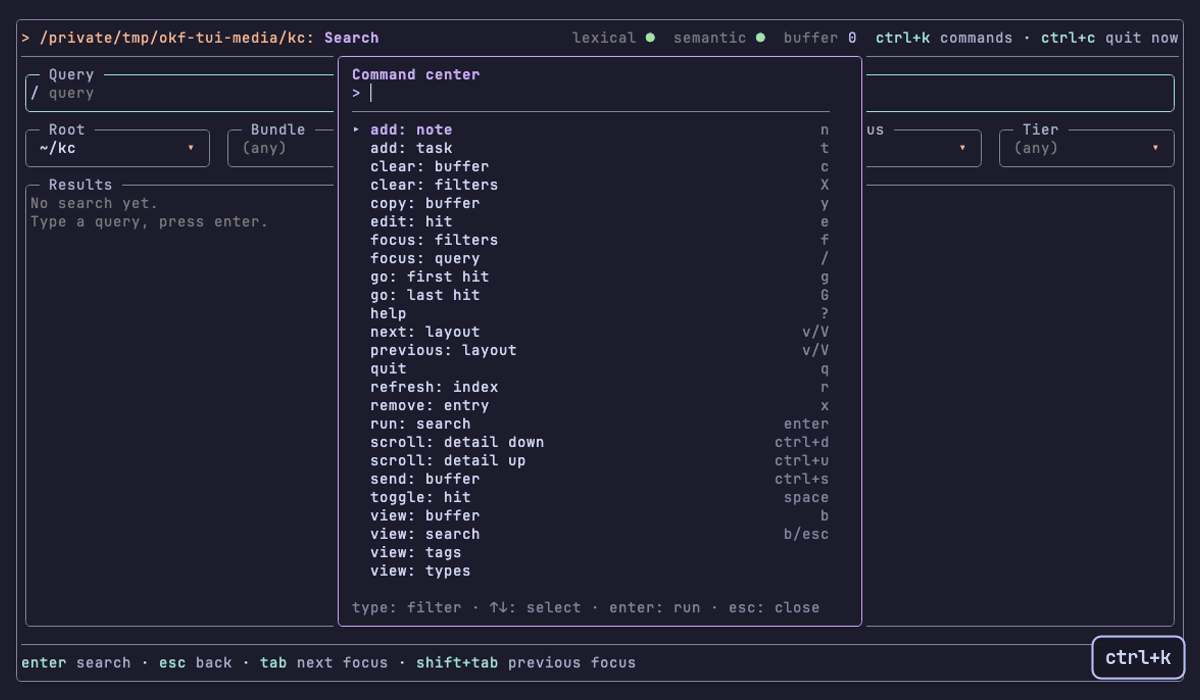
The recordings below show each pressed key in a small box at the bottom right. They run the real binary against a throwaway copy of the test catalogue. Light and dark variants follow the site theme.
okf tui --help names the settings, the state file and the environment variables.
Start
Change into a catalogue and run okf tui. It takes the root as okf find does: --root, then --global, then the nearest catalogue above the current directory, then root in the user config. Without a root it prints the message of okf find and exits with code 3.
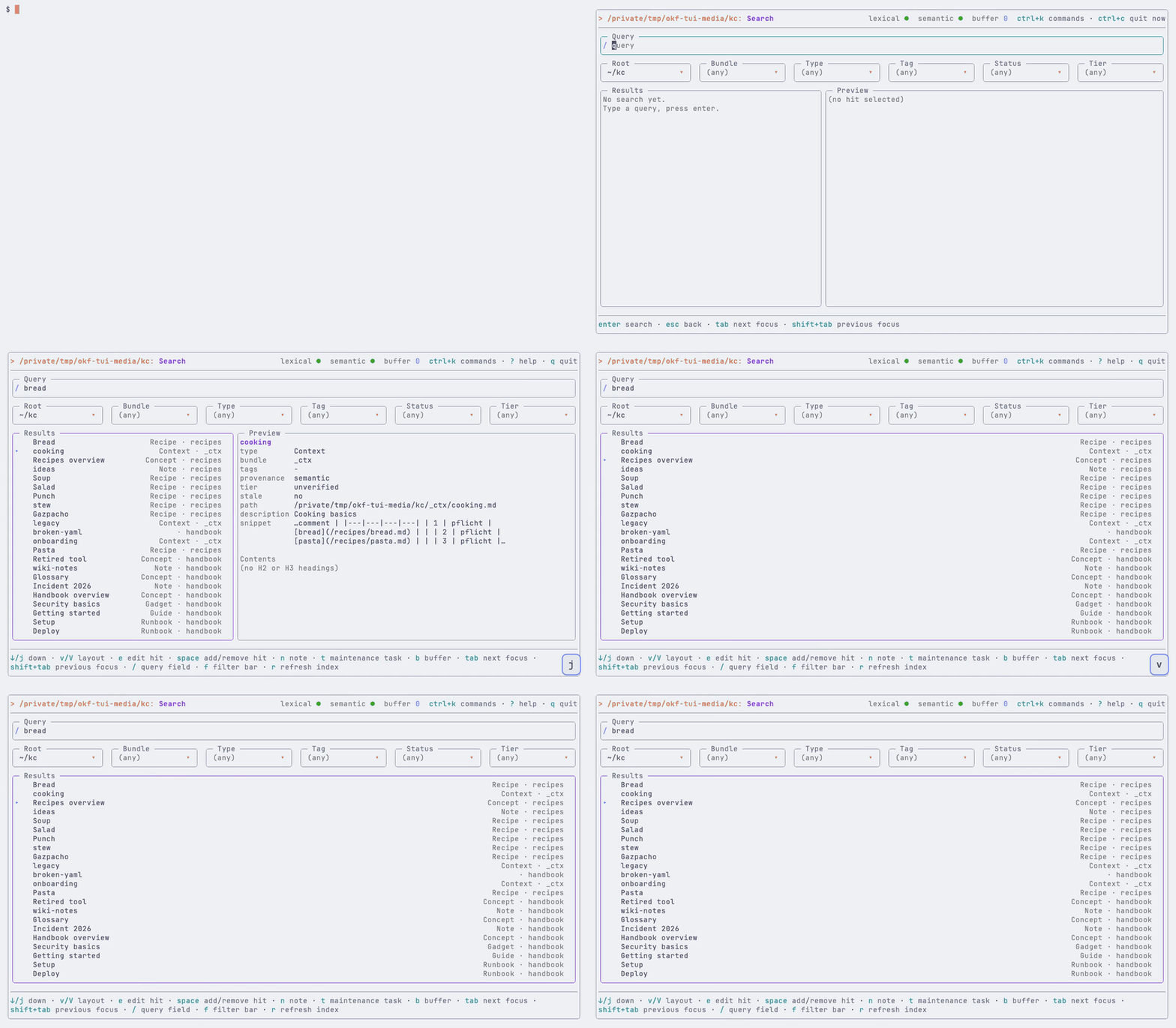
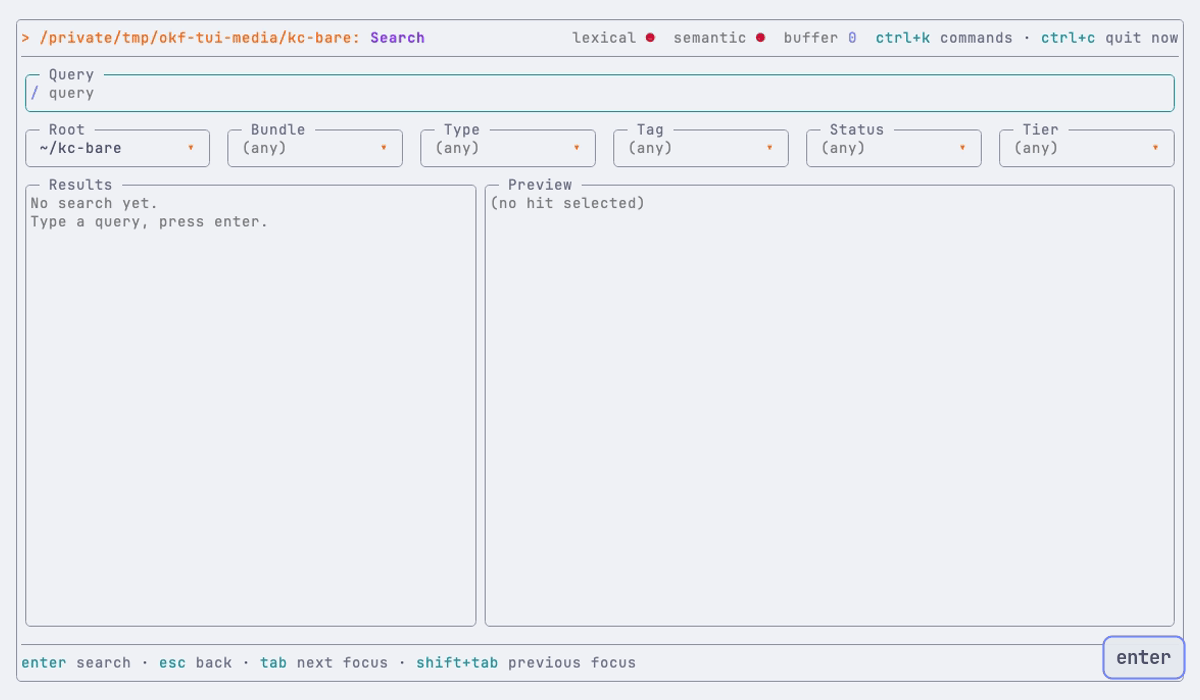
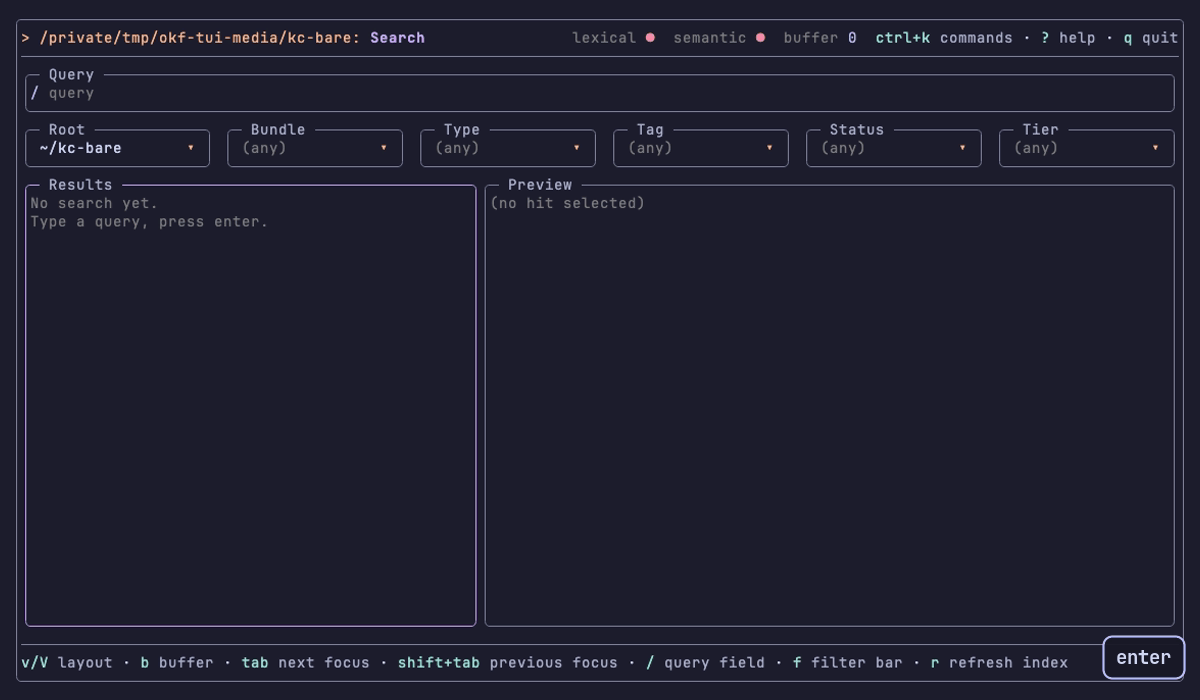
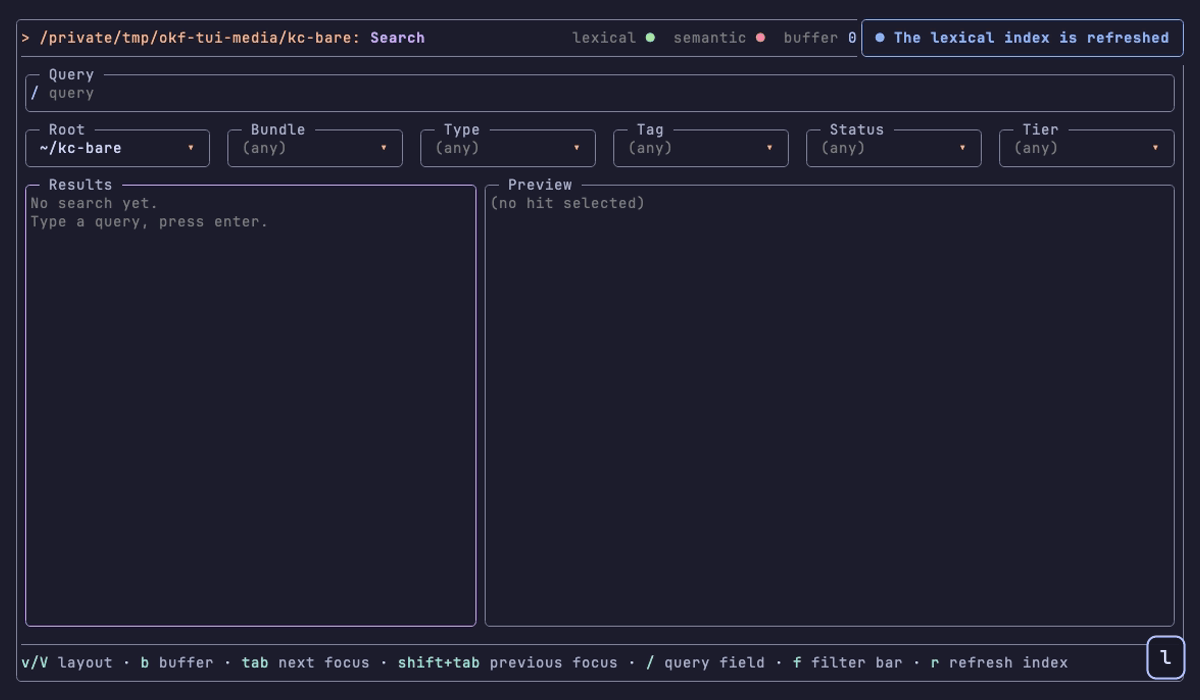
$ cd ~/Knowledge-Catalogue$ okf tuiThe TUI opens on the search screen with the focus in the query field. The header shows the root, the two index dots (lexical and semantic), the buffer count and ctrl+k for the command center.
Search
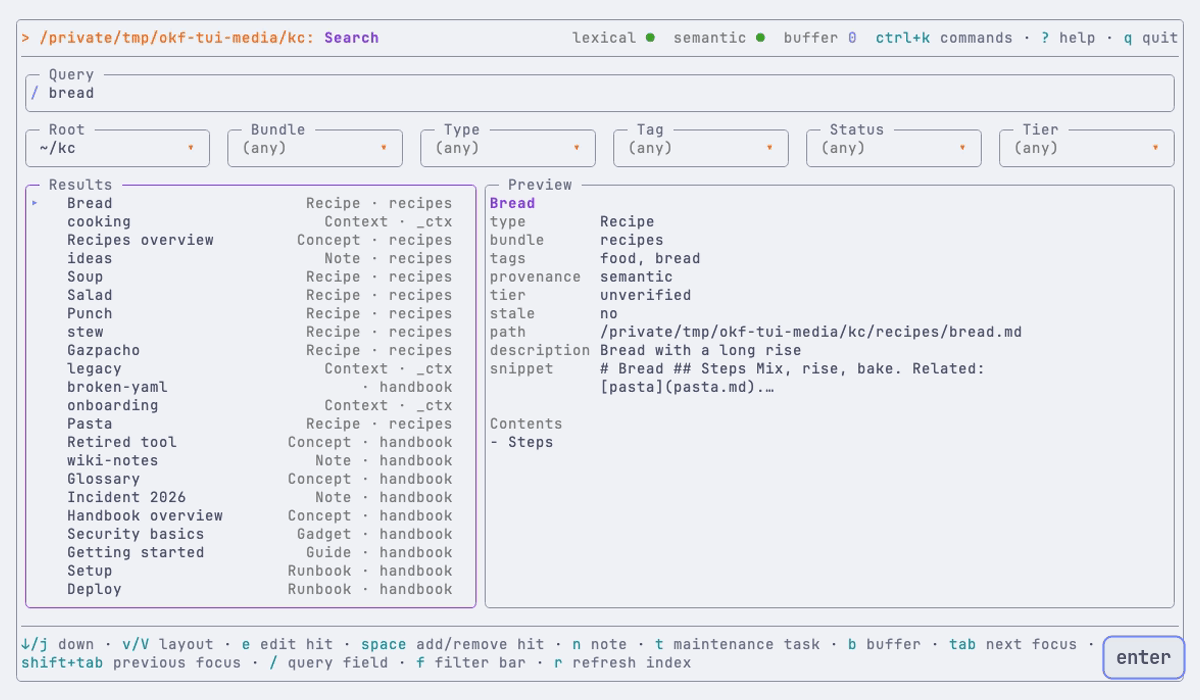
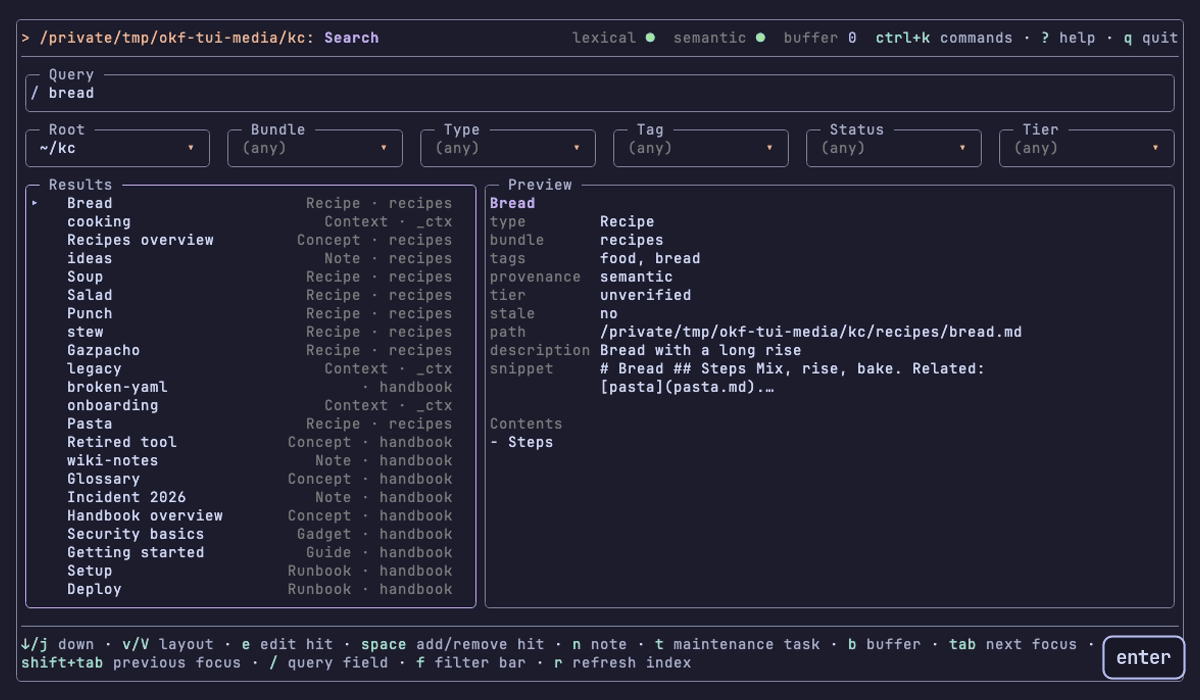
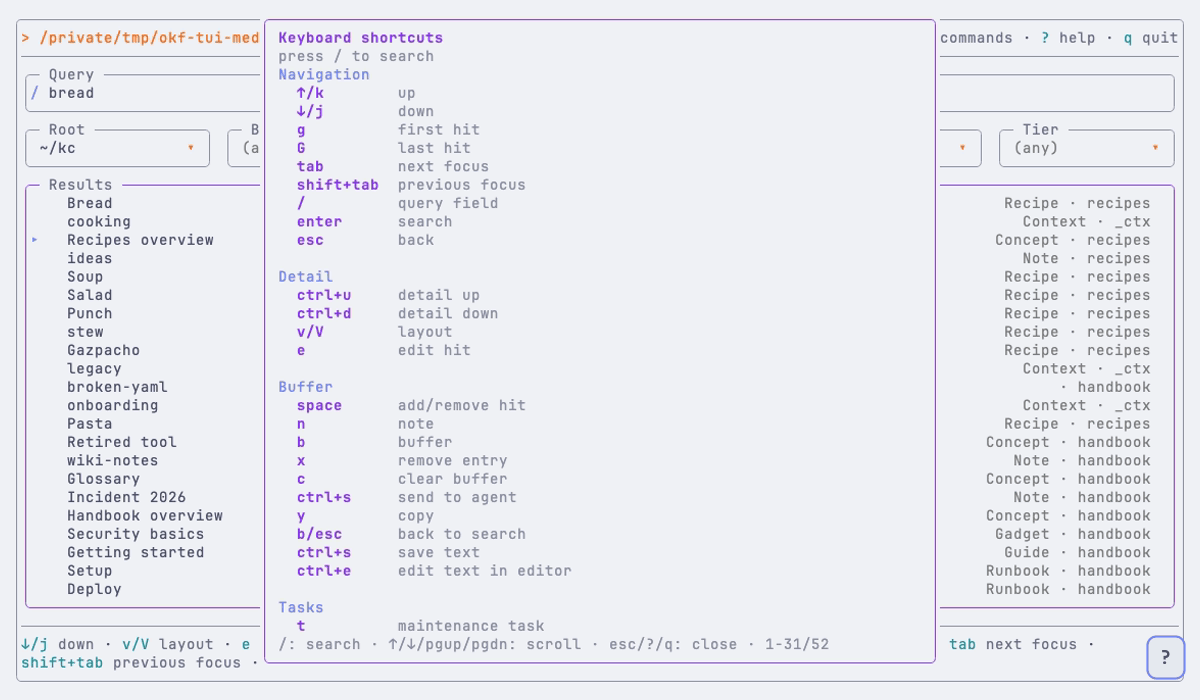
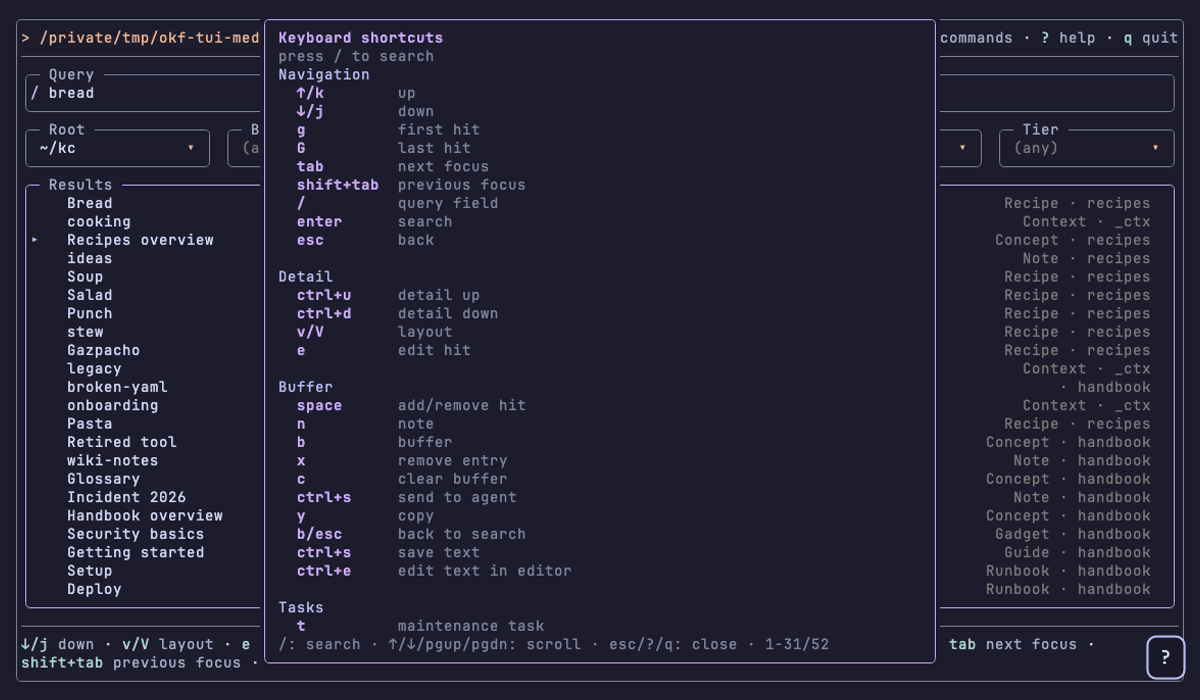
Type a query and press enter. The search runs only on enter, never while you type; it is okf find <query> --limit 50 on the active root. The focus moves to the list. j and k move through the hits, v cycles the layout (list and detail, list, detail), / edits the query again, ? opens the help.

Filters
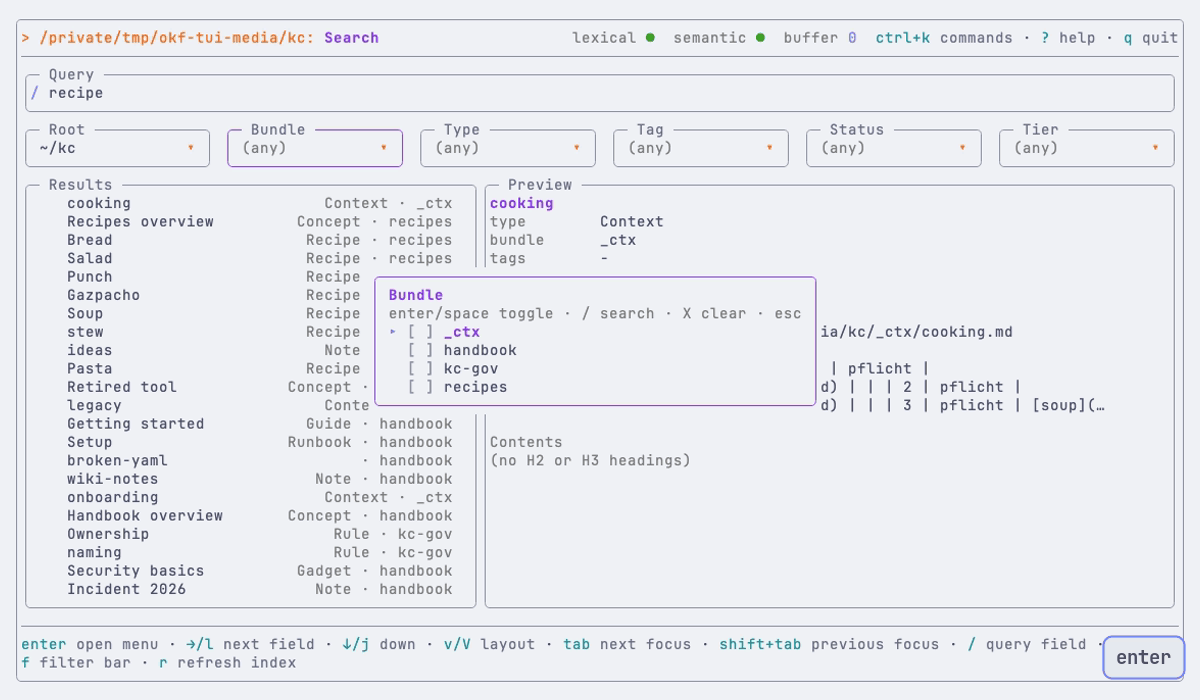
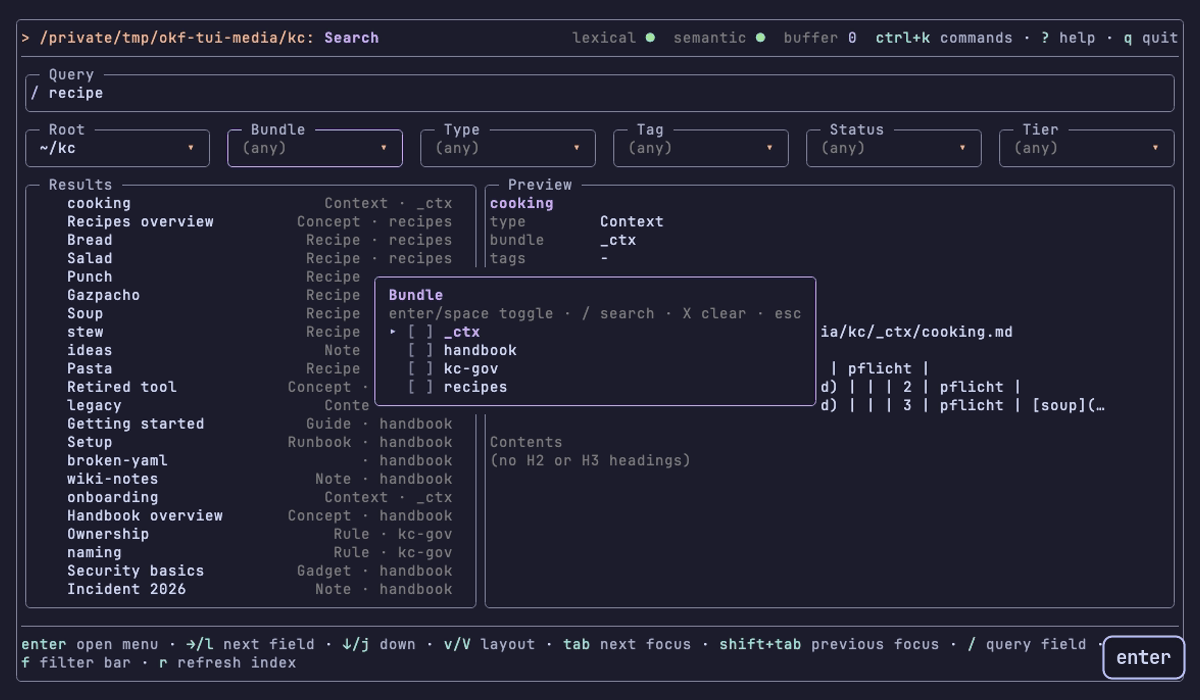
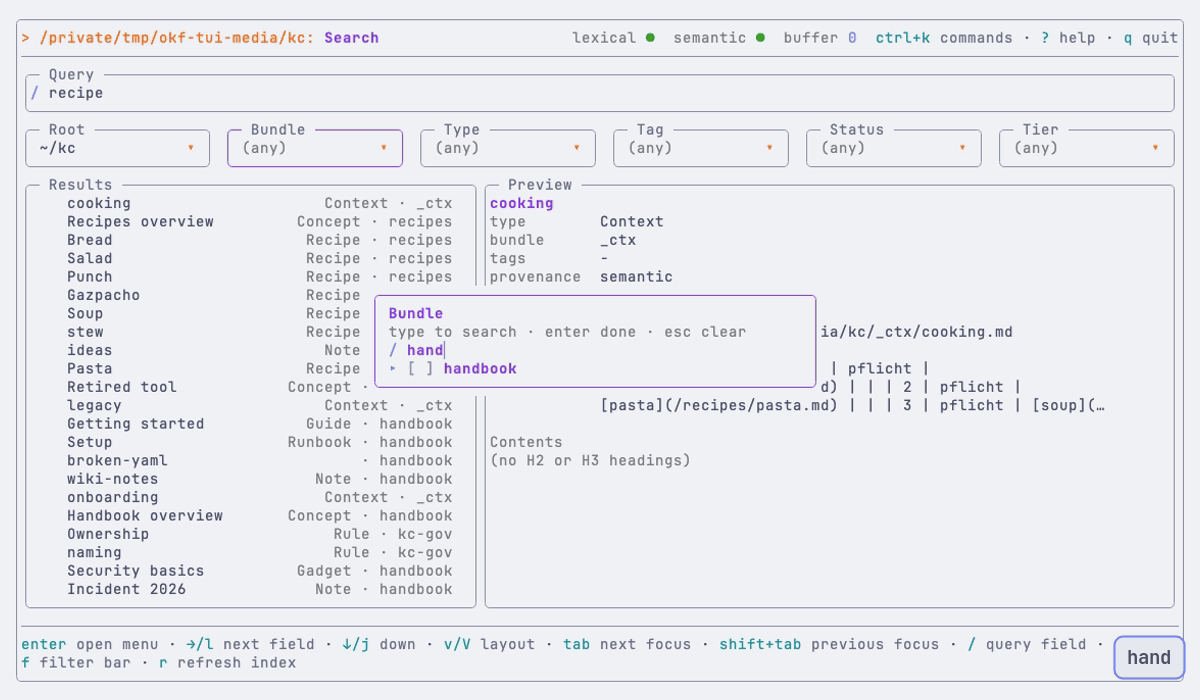
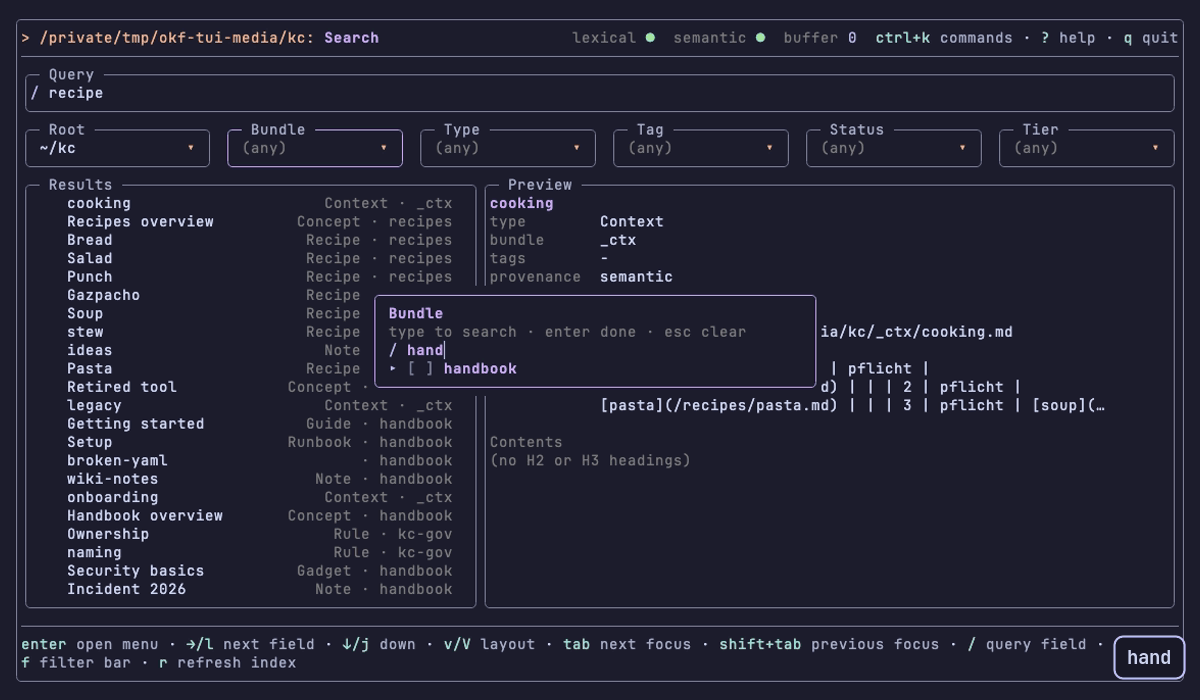
Below the query field a bar of six boxes narrows the search: Root, Bundle, Type, Tag, Status and Tier. You never write --where syntax; the TUI builds the expression for you. f focuses the bar, ← and → move between boxes, enter opens the menu of a box, space selects a value and esc closes the menu. In a long menu, / opens a query line and the menu shows only the matching values. X clears every filter.


Buffer and hand-off
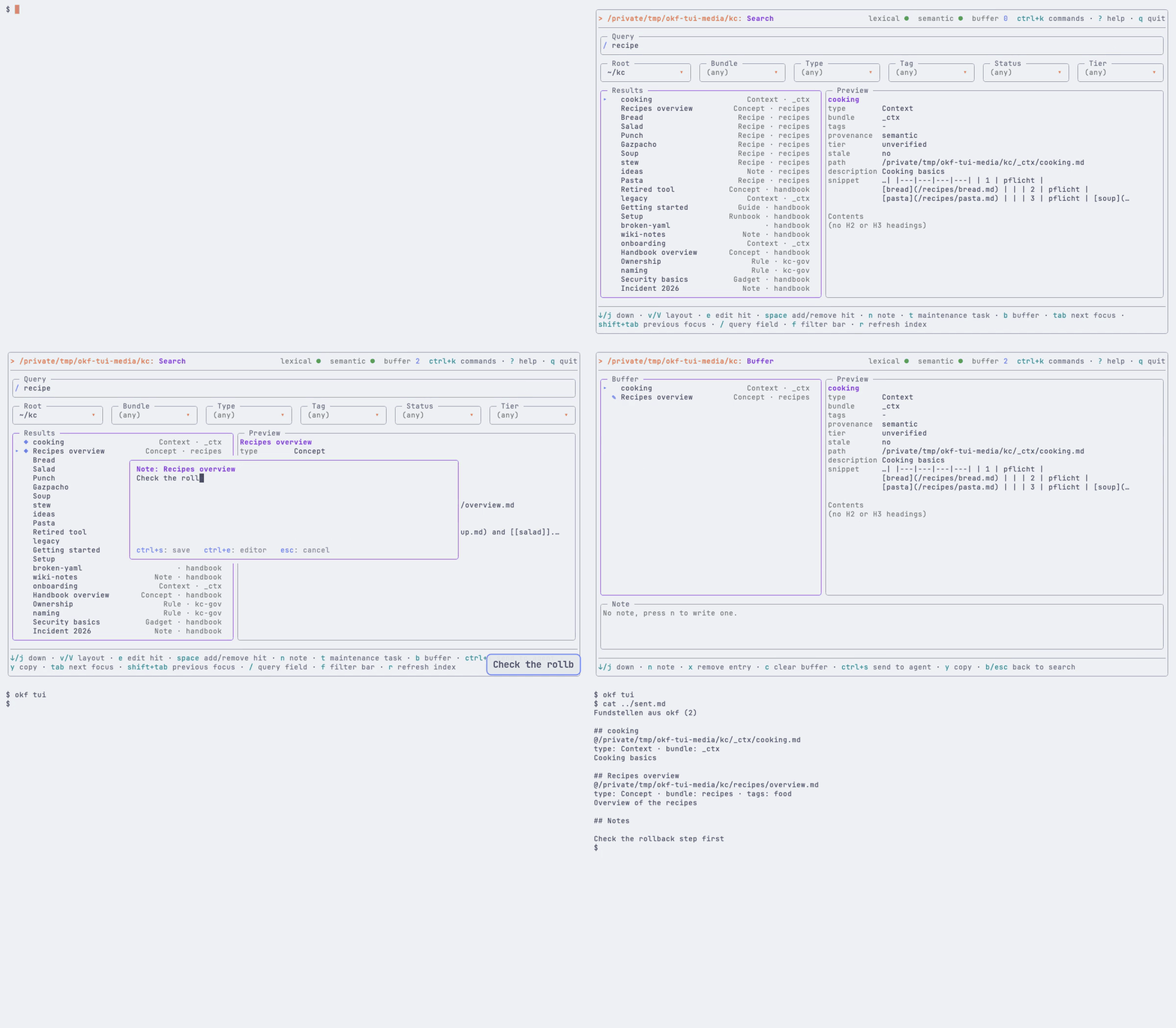
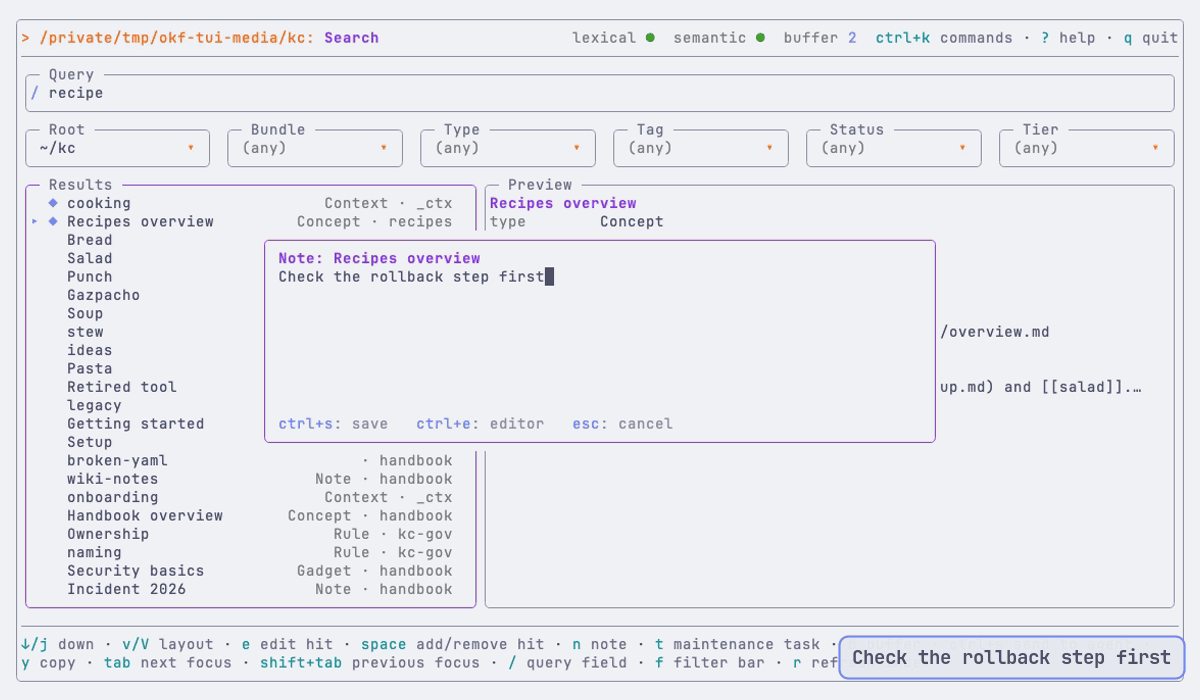
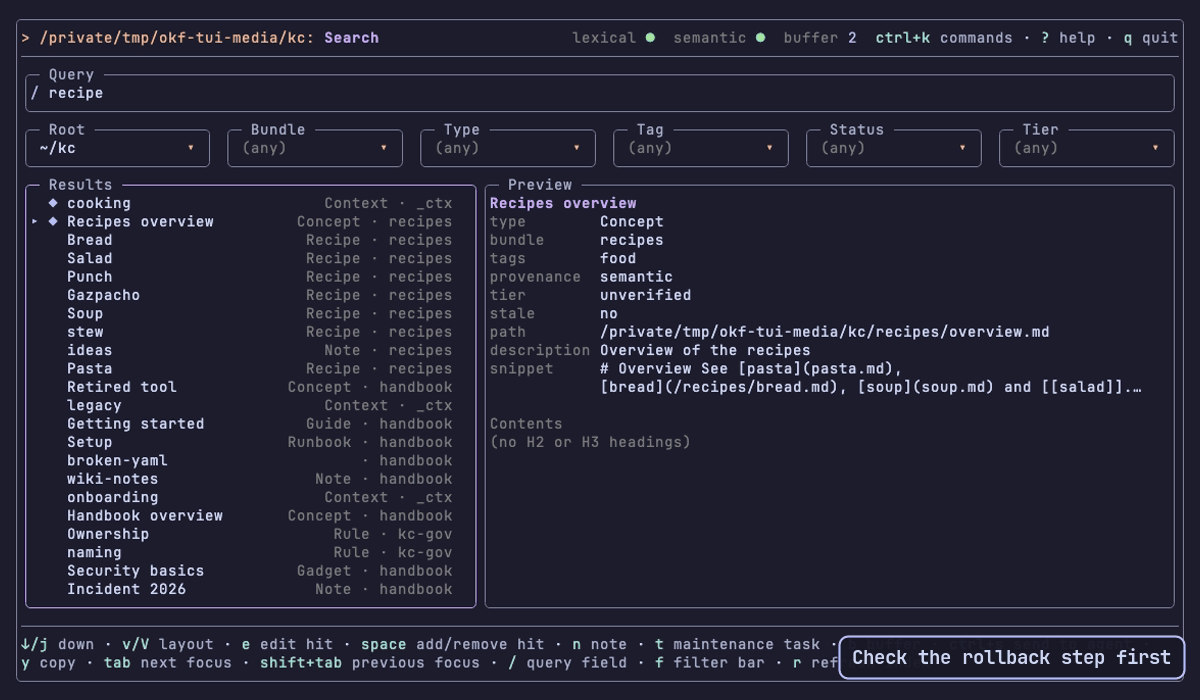
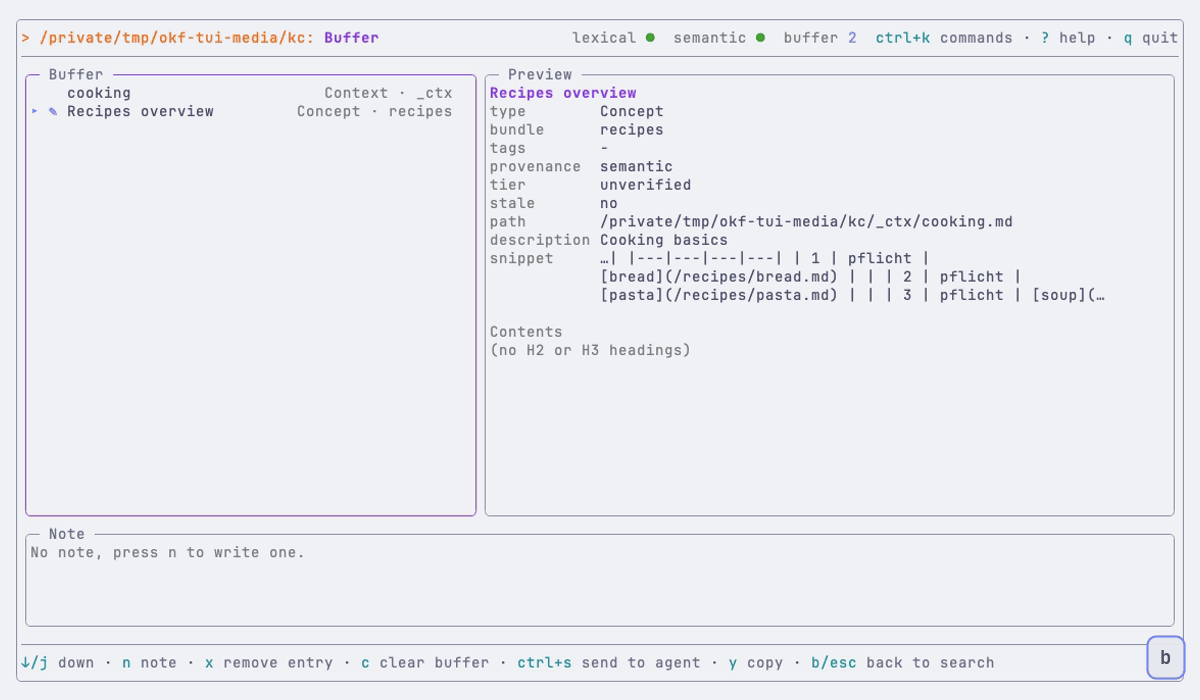
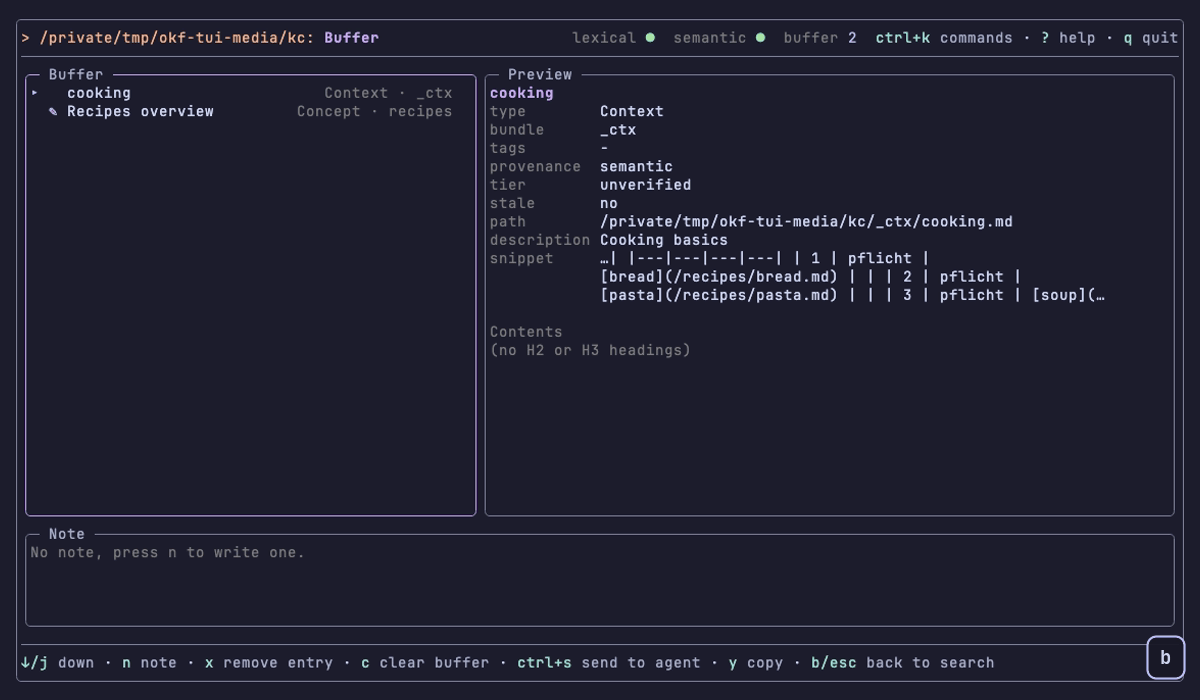
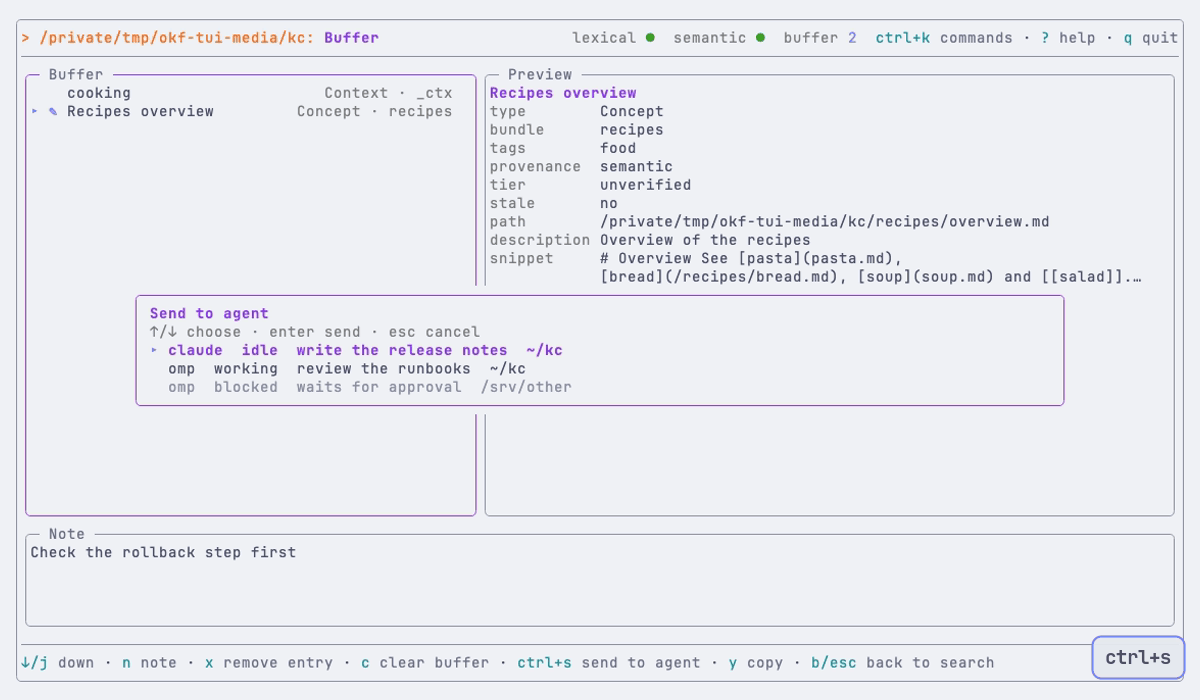
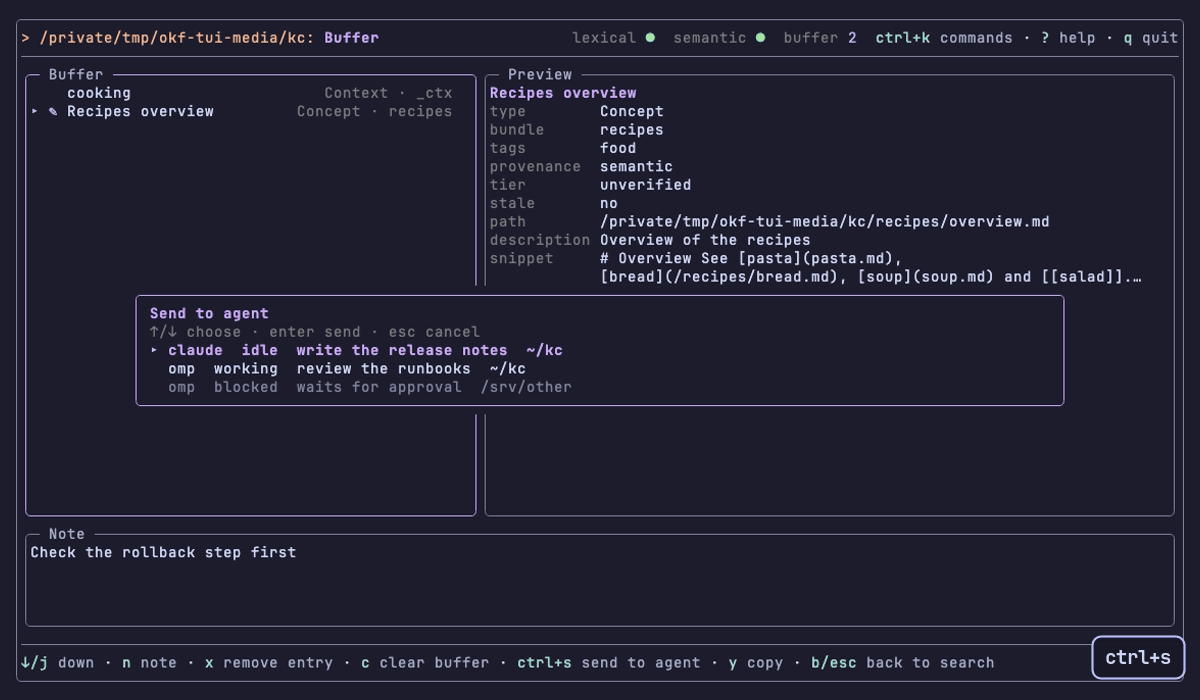
The session buffer collects hits across searches and roots. space adds the focused hit (a ◆ marks it), n writes a note for it, b opens the buffer view. ctrl+s hands the buffer to an agent: the text goes into the agent pane under the herdr popup, or a picker lists the agents herdr knows. Outside herdr the text goes to the clipboard. y copies it to the clipboard on its own.
The recording uses a stand-in herdr that lists three agents, so it shows the picker. The last lines print the text the agent received.

Command center
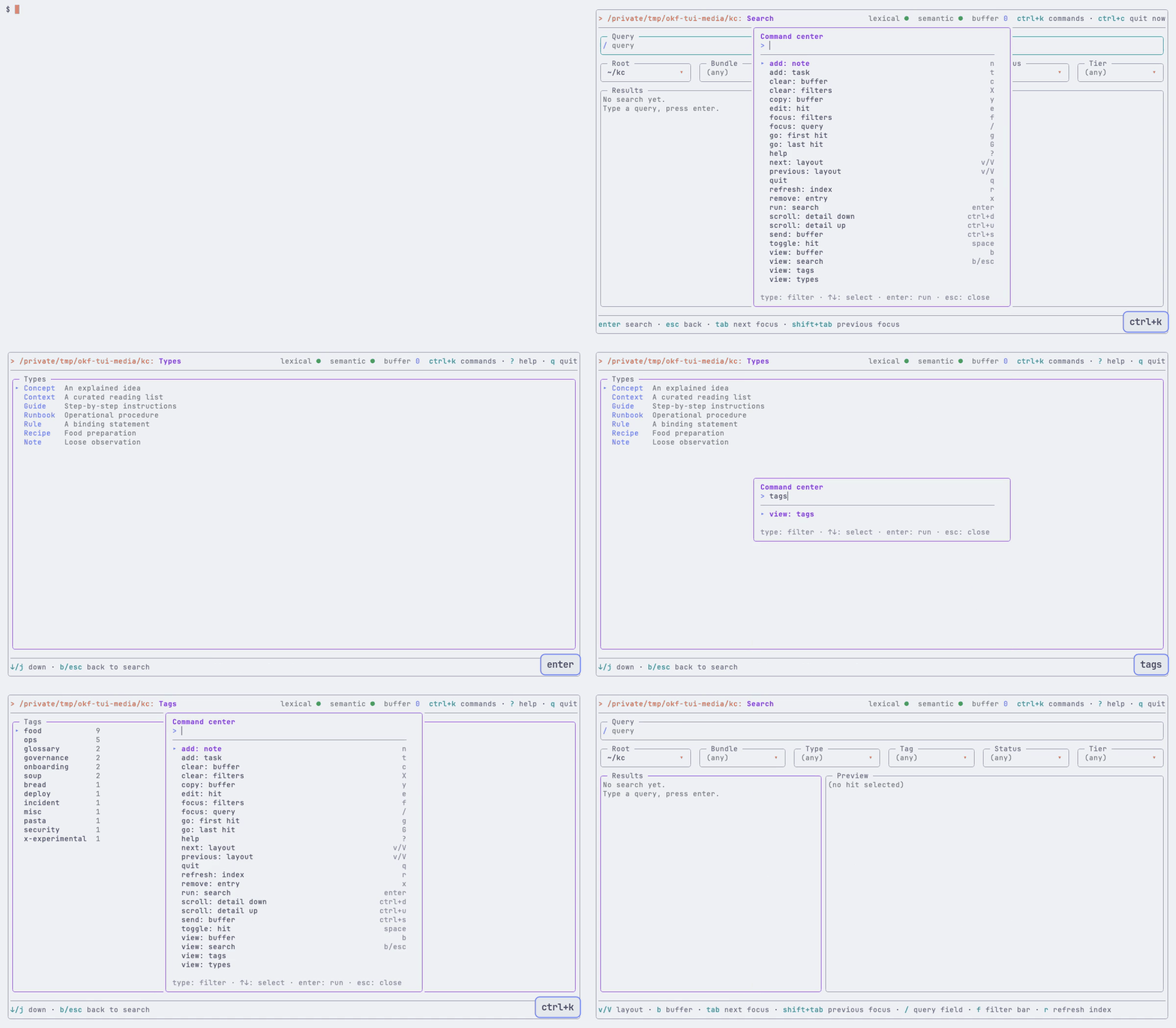
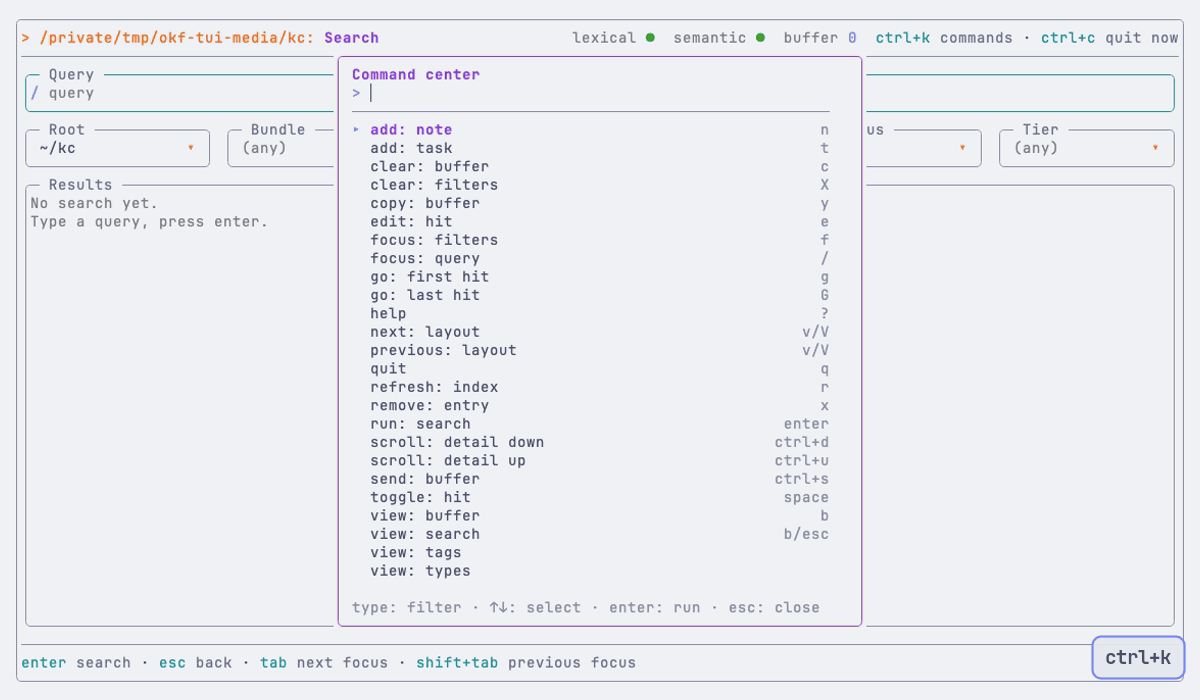
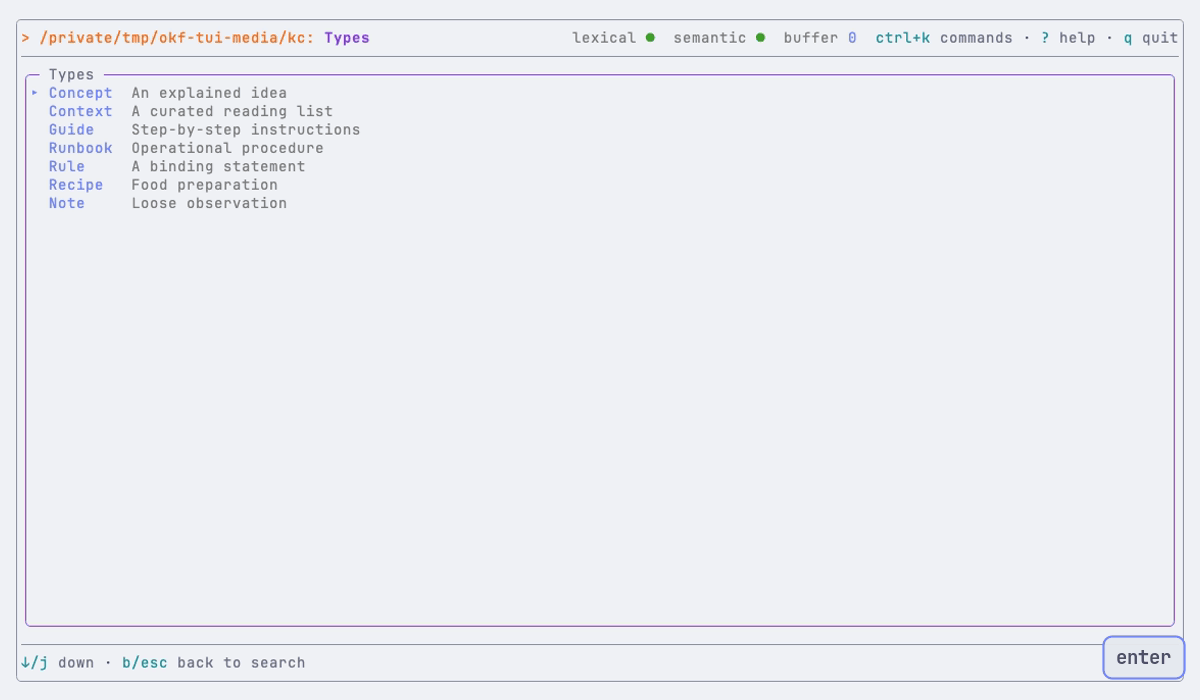
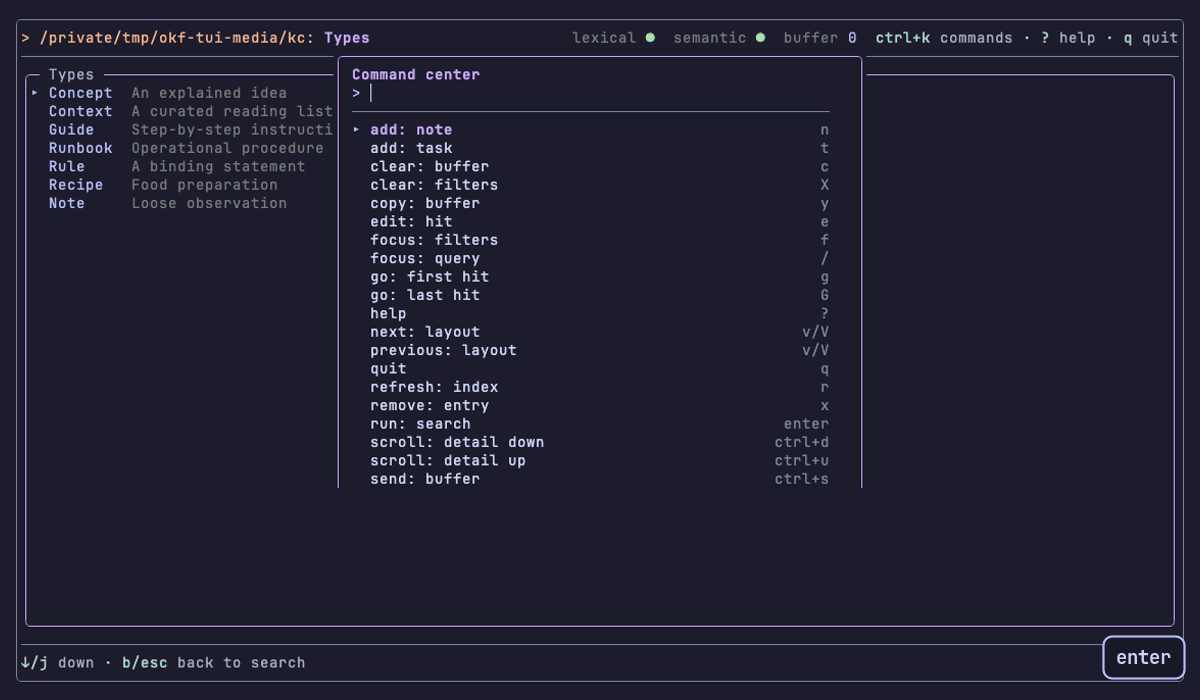
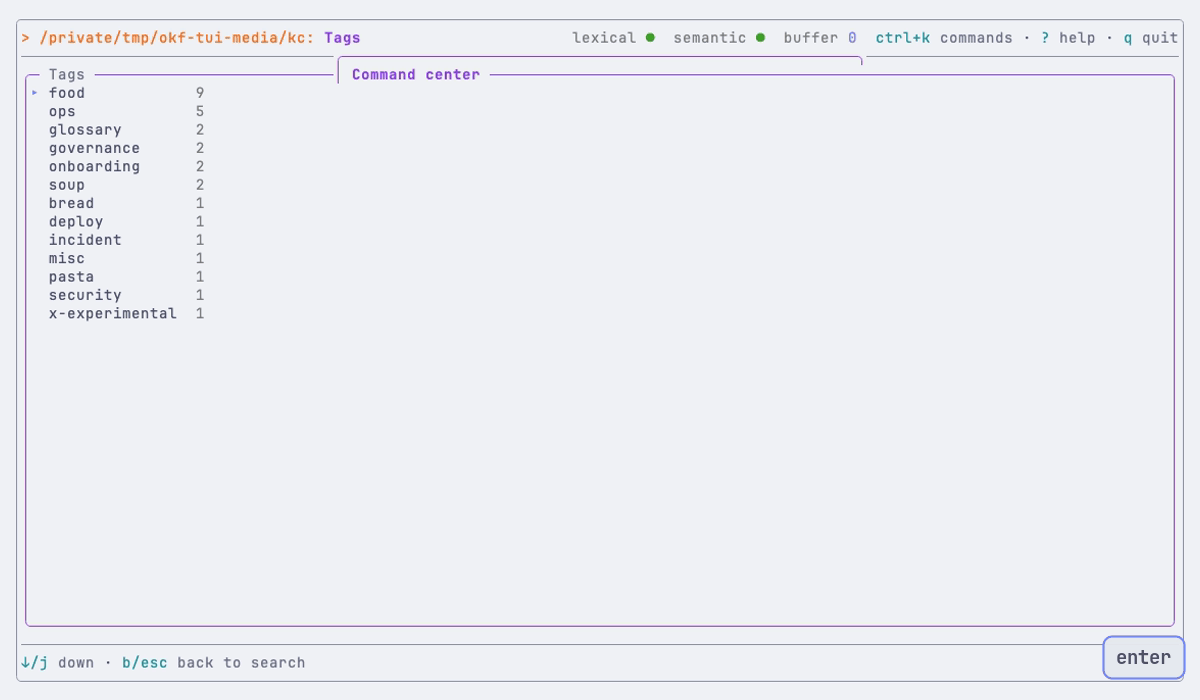
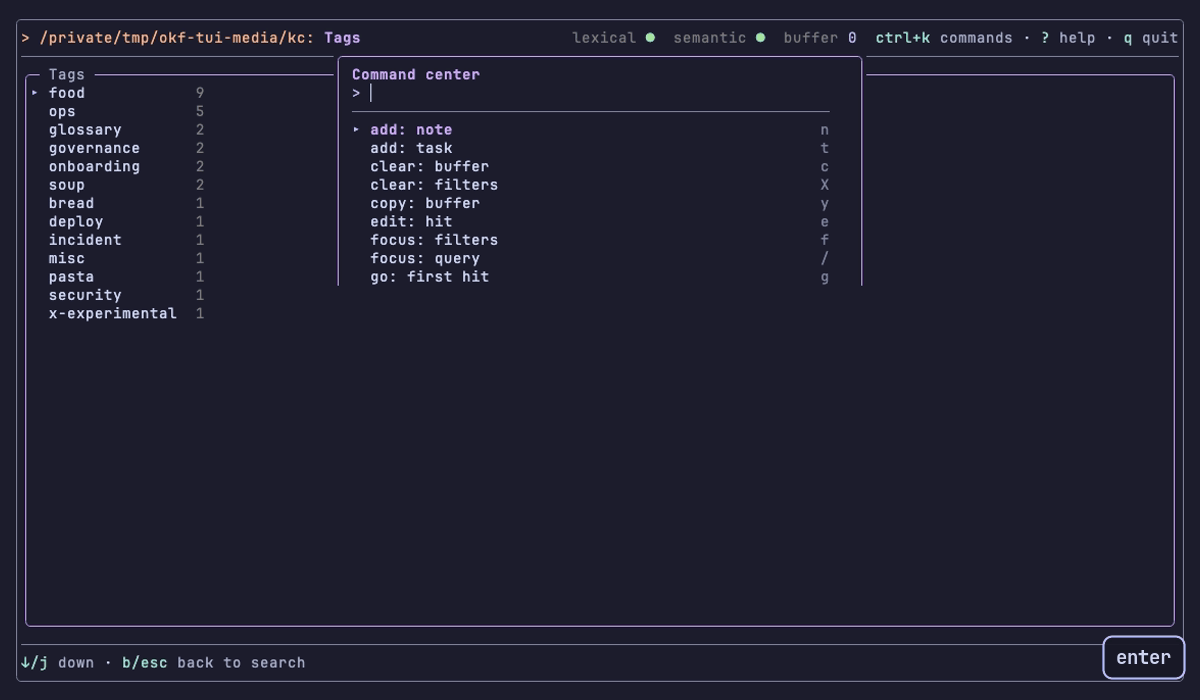
ctrl+k opens the command center from every view, also inside the query field. It lists every action of the key map and every view as <verb>: <object> with its key at the right. Type to filter, ↑ and ↓ select, enter runs. It is the only way to open the types view and the tags view.

Maintenance tasks
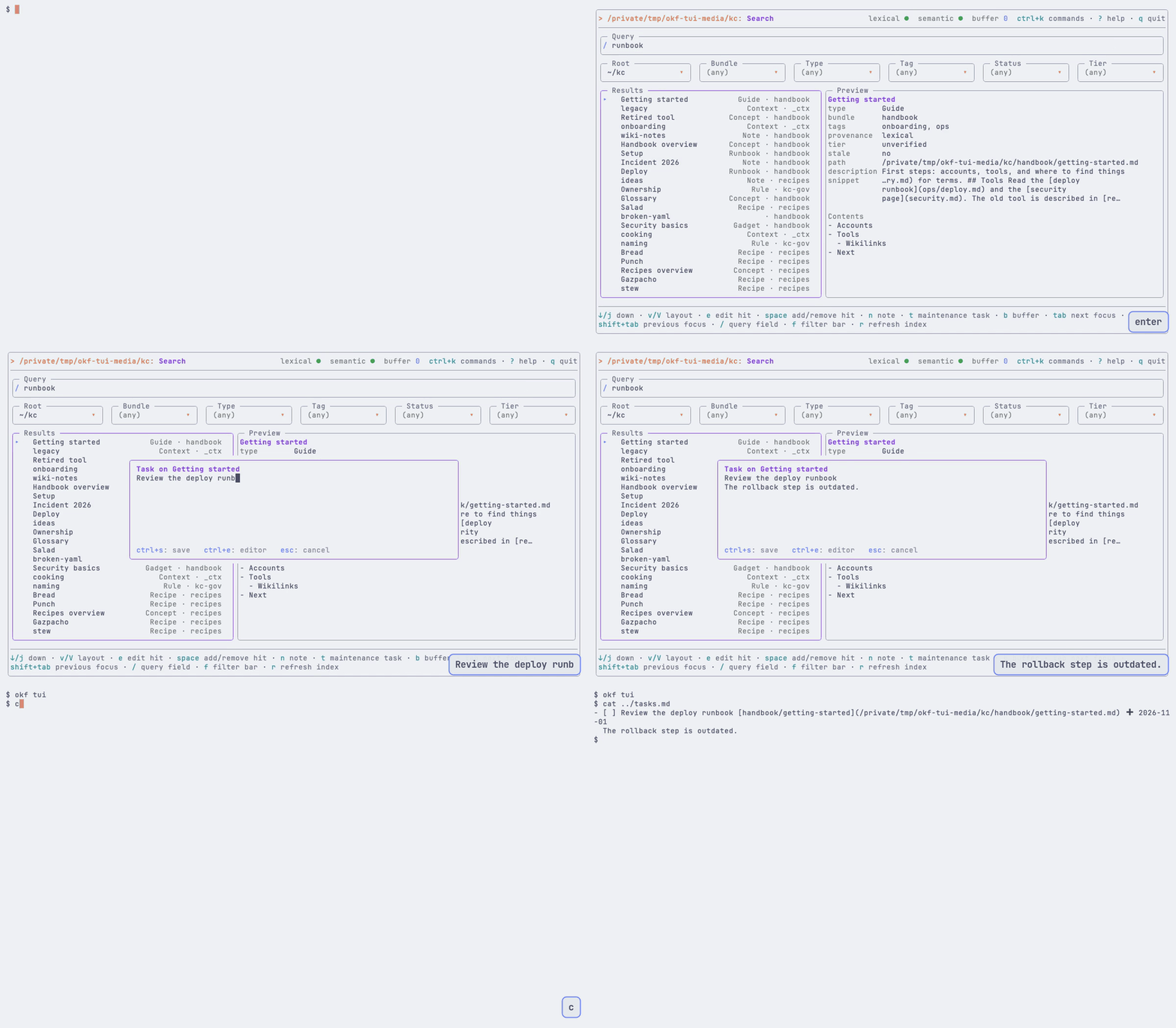
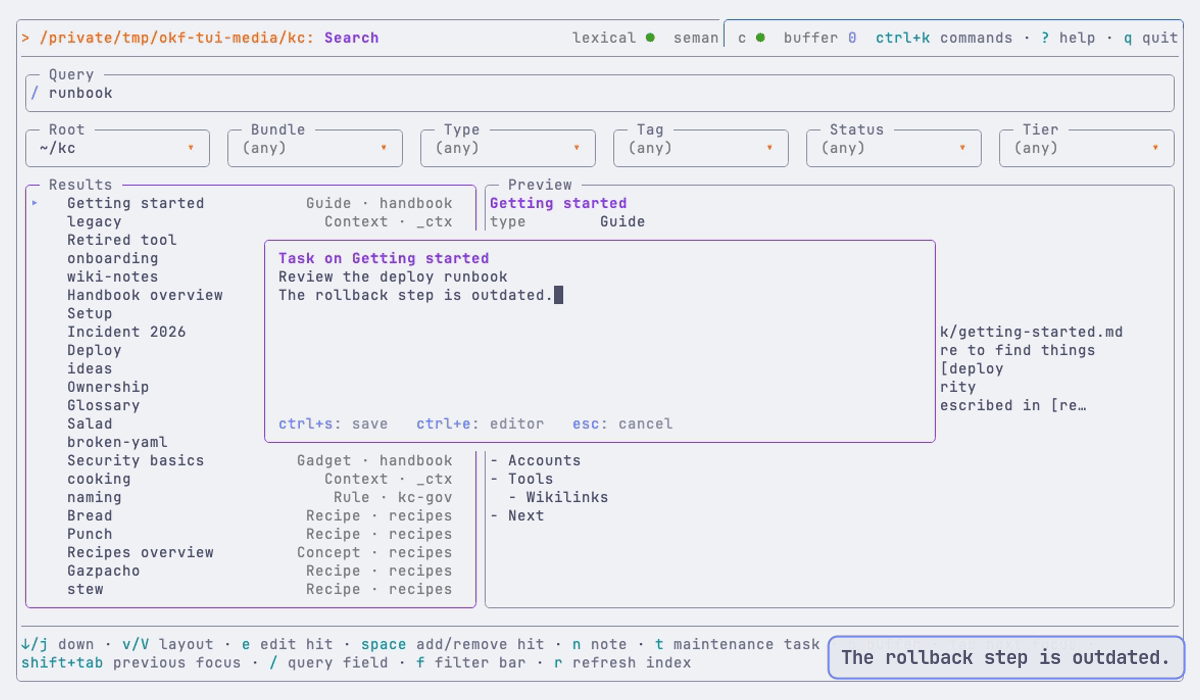
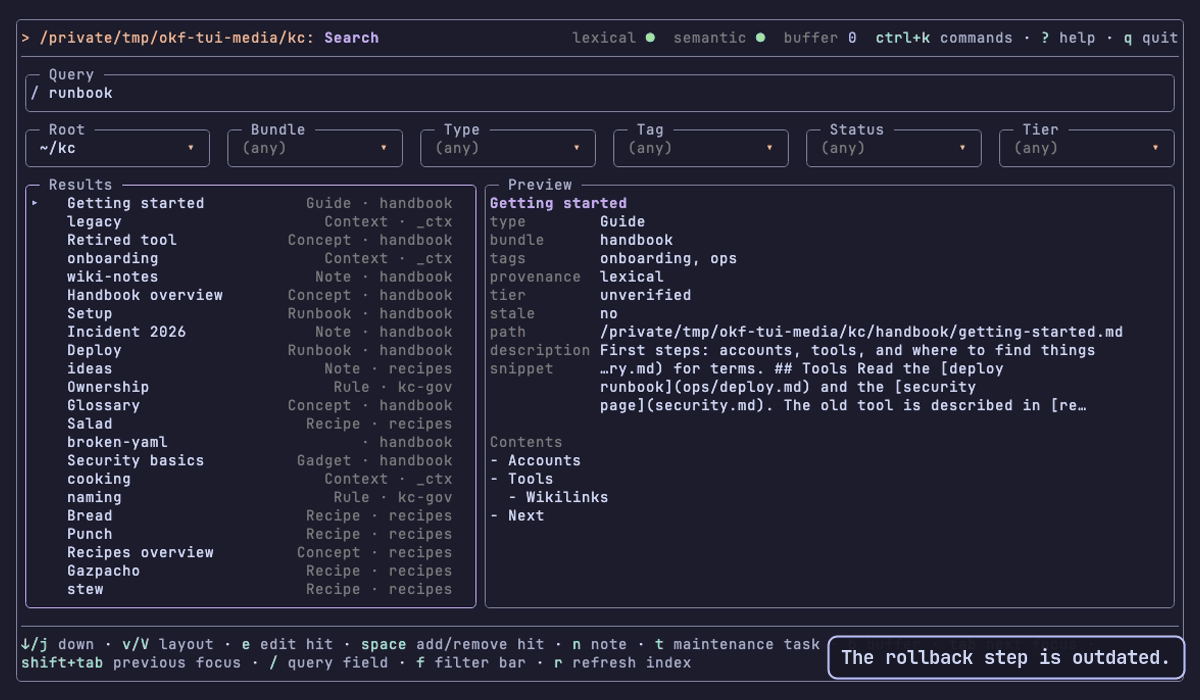
Found something wrong in a concept? Press t on the hit. A text area opens: the first line is the title, the rest is the body. ctrl+s saves the task to the tracker you configured in [tui.tracker]; the TUI keeps your search, list and buffer. The recording uses the file kind, which appends an Obsidian Tasks line.

Index dots
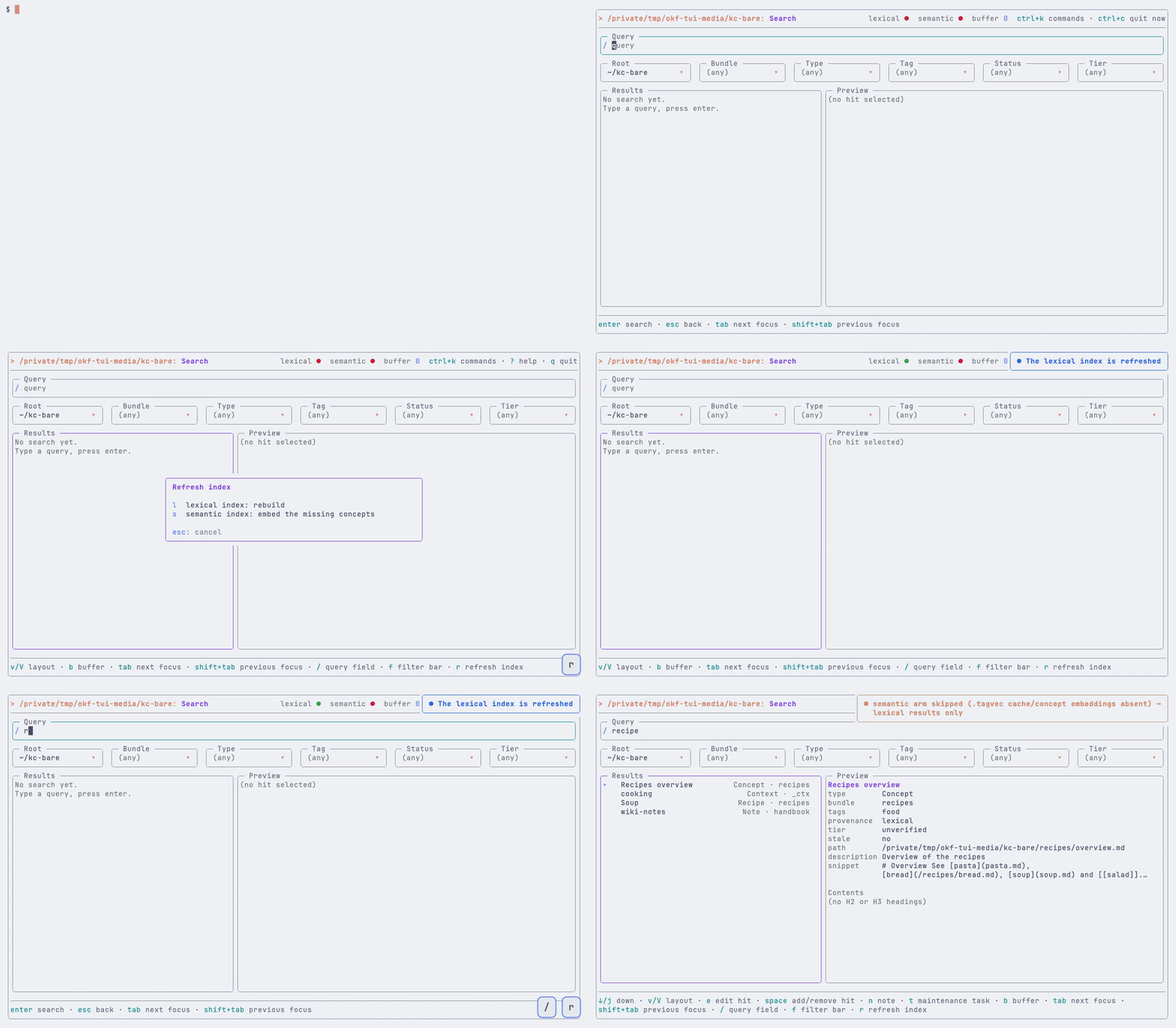
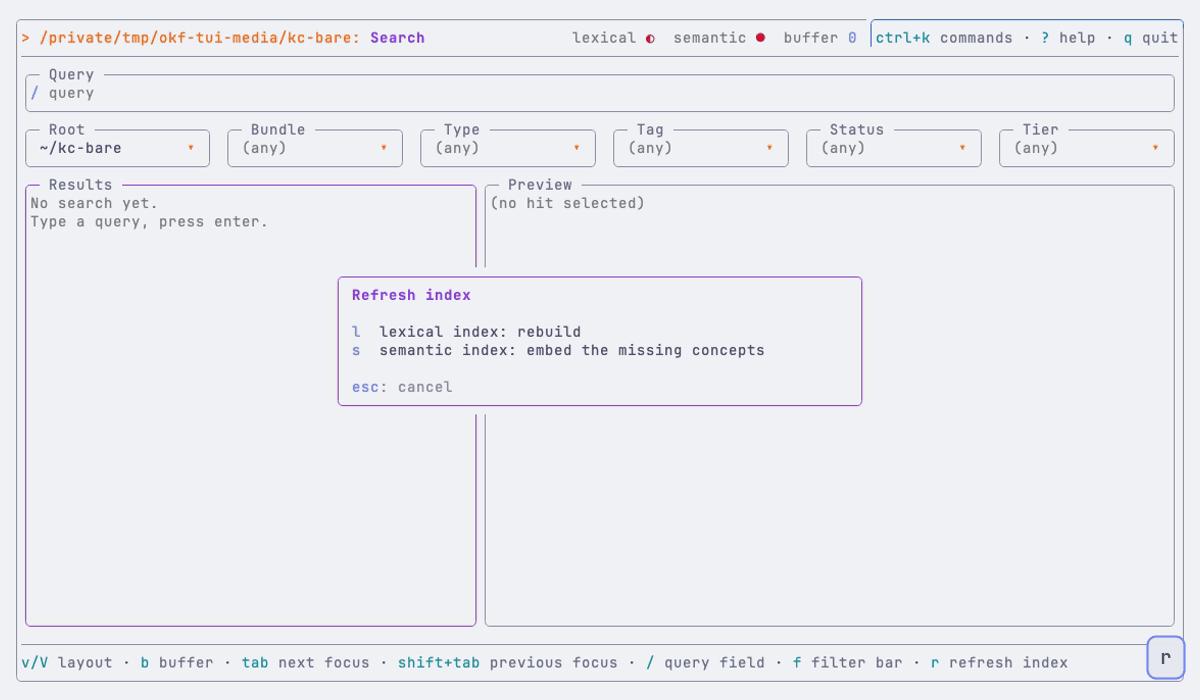
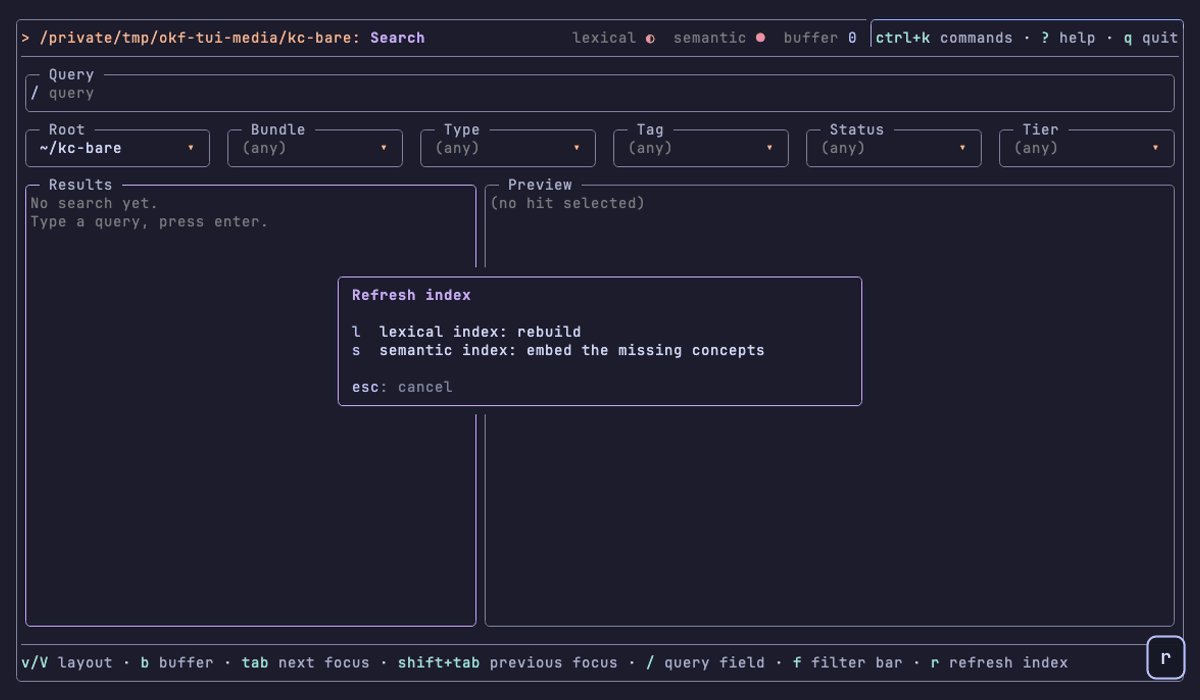
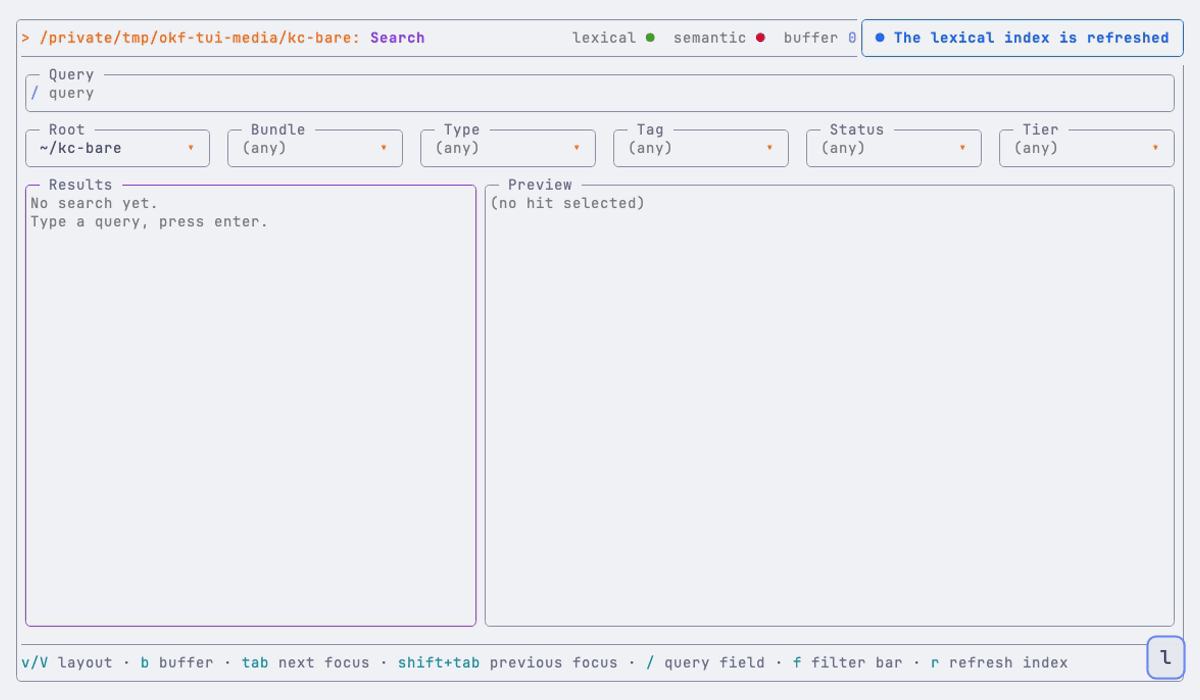
Two dots in the header show the state of the indexes: green current, yellow stale or partial, red absent, grey not checked yet (lexical) or unavailable without VOYAGE_API_KEY (semantic). r opens a dialog: l rebuilds the lexical index, s embeds the missing concepts for the semantic index (it names the number of concepts and asks first).

Open a hit in the editor
e on a hit opens its file in your editor (editor in [tui], then $VISUAL, $EDITOR, vi) and suspends the TUI. When the editor exits, the TUI reads that hit again, so the detail pane shows your change.
Keys and settings
The okf tui reference lists every key, the [tui] settings (editor, theme, accent), the [tui.tracker] kinds, the herdr popup and the exact hand-off text.
Reproduce the media
The recordings come from versioned vhs tapes in scripts/tui-media/. just docs-tui-media runs them against a throwaway copy of the test catalogue with an isolated home and config, and draws the key boxes from the key timeline of each tape.